Can Android Phones Get iPhone Features?
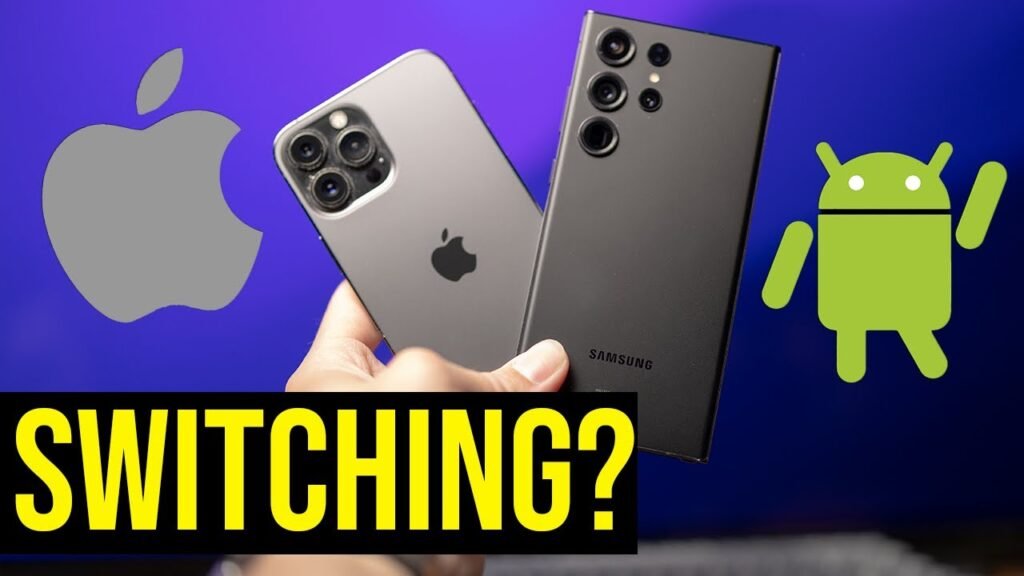
Over 72% of smartphone users have wondered whether they can get iPhone features on their Android device without switching ecosystems. If you’ve ever envied Apple’s sleek interface, privacy features, or exclusive apps while holding your Android phone, you’re not alone. The good news? Many iPhone features are now accessible on Android through native updates, third-party apps, and clever workarounds.
This comprehensive guide answers 12 of the most searched questions about bringing iPhone functionality to Android. Whether you’re curious about iMessage alternatives, iOS-style widgets, or Apple’s privacy features, we’ll show you exactly what’s possible, what’s not, and how to make your Android experience feel more like iOS without spending a fortune on a new device.
Frequently Asked Questions
Can Android phones get iPhone features?
Quick Answer: Yes, Android phones can replicate many iPhone features through native Android updates, third-party apps, and launchers, though some Apple-exclusive services like iMessage and FaceTime remain limited.
Android’s open ecosystem actually makes it easier to customize your device to look and function like an iPhone. Google has incorporated several iOS-inspired features into recent Android versions, including improved privacy controls, widget redesigns, and gesture navigation. Additionally, the Google Play Store offers thousands of apps specifically designed to bring iPhone aesthetics and functionality to Android devices.
- Visual features like iOS interface and animations are easily replicated using launchers
- Functional features like privacy dashboards and app tracking controls now exist natively in Android 12+
- Some ecosystem features like AirDrop have Android equivalents through Nearby Share
🎯 Our recommendation: Start with a quality launcher like Launcher iOS 18 or Nova Launcher to transform your Android’s appearance, then add specific feature apps as needed.
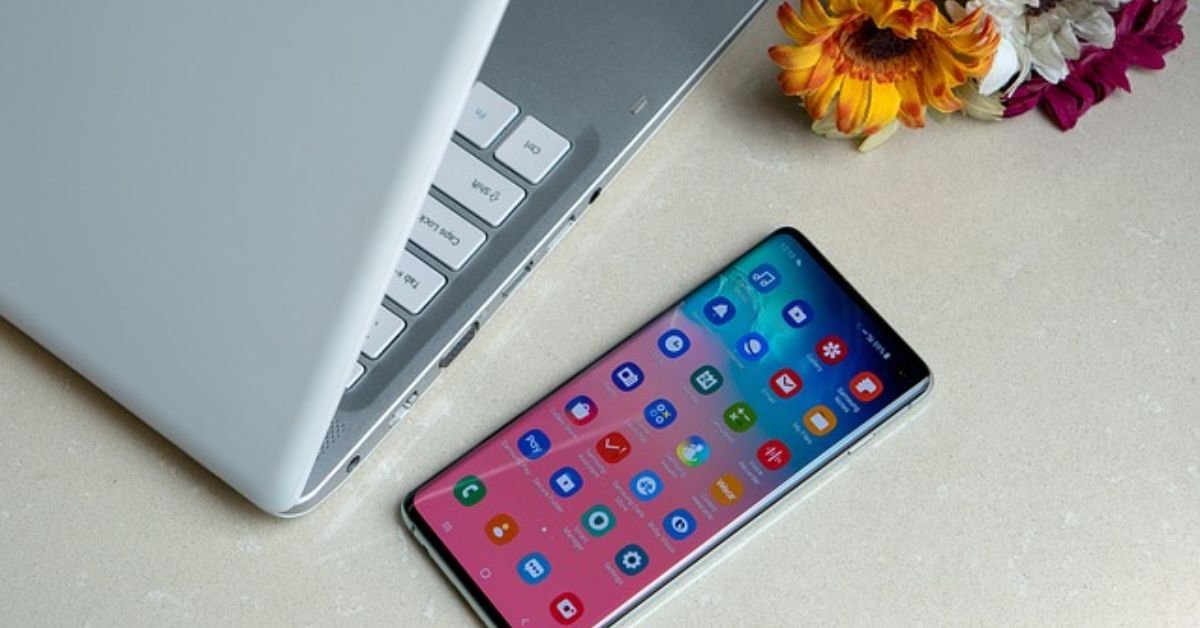
How can I make my Android look like an iPhone?
Quick Answer: Install an iOS launcher from the Google Play Store, apply an iPhone icon pack, and customize your widgets to match iOS 18’s design for a complete visual transformation.
Transforming your Android’s appearance to match an iPhone takes about 15 minutes and requires no technical expertise. The process involves three main steps: installing a launcher that mimics iOS interface, applying matching icon packs, and configuring widgets that replicate Apple’s design language. Apps like Launcher iOS 18, iLauncher, and Control Center iOS 18 have been downloaded millions of times and offer remarkably accurate recreations of the iPhone experience.
- Best launchers: Launcher iOS 18 (free), Nova Launcher Prime ($4.99), iLauncher (free with ads)
- Icon packs: iOS Icon Pack, iPhone Icon Pack, OneUI iOS Theme
- Widget apps: KWGT with iOS widget packs, Color Widgets, Widgetsmith alternatives
✅ Best for: Users who want the iPhone aesthetic without changing their Android device.
💰 Price range: Free to $10 for premium launcher and icon pack combinations.
What iPhone features does Android already have?
Quick Answer: Android natively includes iPhone-inspired features like app privacy reports, permission controls, gesture navigation, improved widgets, and quick settings that match or exceed iOS capabilities.
Google has been actively integrating popular iPhone features into Android over recent years. Android 12 and later versions include a Privacy Dashboard that shows which apps access your location, camera, and microphone—similar to iOS. Material You design language offers customization that actually surpasses iOS options. Gesture navigation, introduced in Android 10, mirrors iPhone’s swipe-based interface. Google’s Quick Share matches AirDrop functionality, while Digital Wellbeing provides screen time controls comparable to Screen Time on iOS.
- Privacy Dashboard and app permission indicators (Android 12+)
- Gesture navigation and fluid animations (Android 10+)
- Customizable widgets with dynamic updates (Android 12+)
- Quick Share for easy file transfers between devices
- Focus modes and notification management
⚡ Quick tip: Update to Android 13 or 14 to access the most iOS-like native features without any additional apps.
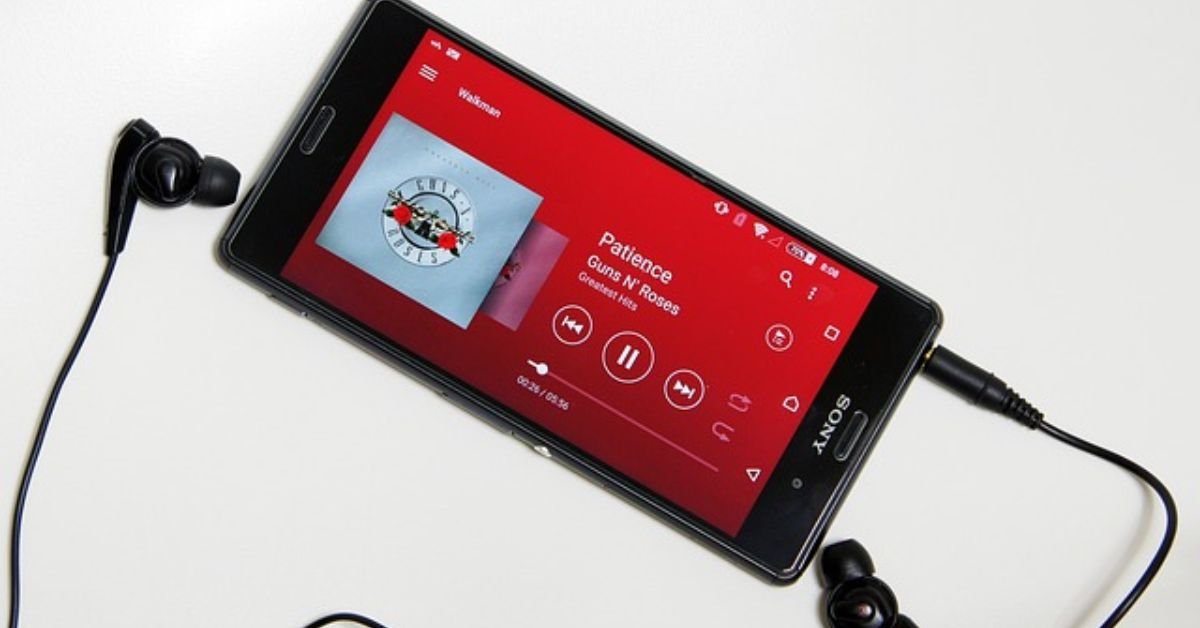
Can I get iMessage on Android?
Quick Answer: No, iMessage is not officially available on Android, but you can use alternatives like Google Messages with RCS, WhatsApp, or Telegram that offer similar features including read receipts, typing indicators, and high-quality media sharing.
Apple keeps iMessage exclusive to its ecosystem as a competitive advantage, and there’s no legitimate way to get the official iMessage app on Android. However, the messaging gap has narrowed significantly. Google Messages now supports RCS (Rich Communication Services), which provides iPhone-like features when chatting with other RCS users: read receipts, typing indicators, high-resolution photos and videos, and end-to-end encryption. When Android users message iPhone users, texts still fall back to SMS/MMS, which explains the notorious “green bubble” issue.
- Google Messages: Best iMessage alternative with RCS support built-in
- Cross-platform options: WhatsApp, Telegram, Signal work on both iOS and Android
- Beeper and Sunbird: Third-party services that attempted iMessage access but face reliability issues
🔗 Learn more: Google Messages is free and pre-installed on most Android phones. Enable RCS in settings for the best experience.
Is there a FaceTime alternative for Android?
Quick Answer: Yes, Google Meet, WhatsApp Video, and Telegram offer high-quality video calling on Android with features matching or exceeding FaceTime, and you can now join FaceTime calls from Android via web browser.
While Android doesn’t have FaceTime, it actually offers more video calling options than iPhone. Google Meet (formerly Duo) comes pre-installed on many Android devices and offers excellent video quality, group calls up to 100 participants, and integration with your Google contacts. Surprisingly, Apple now allows Android users to join FaceTime calls through a web link—iPhone users can create a FaceTime link and share it with Android users who can join via their browser.
- Google Meet: Best native option with free group calls and screen sharing
- WhatsApp Video: Works across platforms with end-to-end encryption
- Zoom and Telegram: Professional-grade options with advanced features
✅ Best for: Users who need cross-platform video calling with family and friends on different devices.
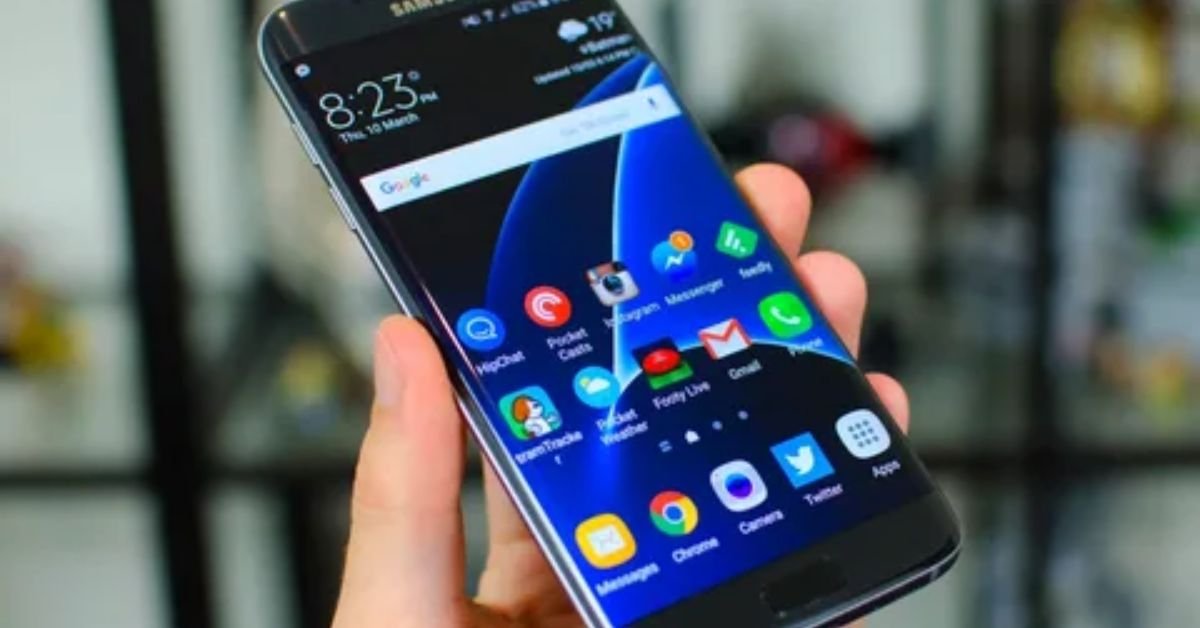
Can Android phones use AirDrop?
Quick Answer: No, but Android’s Nearby Share (Quick Share on Samsung devices) works identically to AirDrop, allowing instant file transfers between nearby Android devices and now Windows PCs.
AirDrop is Apple-exclusive, but Google’s answer is arguably better for Android users. Nearby Share, built into Android since version 10, lets you share photos, videos, links, and files with nearby Android devices instantly—no pairing required. Samsung’s Quick Share goes further, allowing transfers to Samsung TVs and Windows computers. The technology works similarly to AirDrop using Bluetooth and Wi-Fi Direct, and in testing, transfer speeds are comparable or faster for large files.
- Works with all Android devices running Android 6.0 or later
- No size limits unlike some cloud-based sharing methods
- Privacy controls let you choose who can send you files
⚡ Quick tip: Enable Nearby Share in your Quick Settings panel for instant access. Set visibility to “All contacts” for seamless sharing with friends.
What’s the difference between Android and iPhone features?
Quick Answer: Android offers more customization and flexibility while iPhone provides tighter ecosystem integration and longer software support; both platforms now share similar core features like privacy controls, widgets, and gesture navigation.
The gap between Android and iPhone features has narrowed dramatically. Both platforms offer robust app ecosystems, advanced cameras, biometric security, and seamless cloud integration. Android’s advantage lies in customization—you can change launchers, default apps, and even system behaviors. iPhone excels at ecosystem integration: AirDrop works with Macs, iMessage syncs across Apple devices, and accessories like AirPods offer special features on iOS. Privacy-wise, both platforms now offer similar controls, though Apple markets these features more prominently.
- Customization: Android wins with launchers, widgets, and default app choices
- Ecosystem: iPhone wins with seamless Apple device integration
- Updates: iPhone receives 5-7 years of support; Android varies by manufacturer (2-5 years typically)
- App availability: Virtually identical for popular apps; some apps launch on iOS first
💰 Price range: Android phones: $100-$1,500+; iPhones: $429-$1,599. More price flexibility with Android.
How much does it cost to get iPhone features on Android?
Quick Answer: Most iPhone features can be replicated on Android for free using built-in functions and free apps; premium customization apps cost $1-$10 for one-time purchases.
The beauty of Android’s open ecosystem is that you can achieve an iPhone-like experience without spending extra money. Most visual transformations use free launchers and icon packs supported by ads. Native Android features like privacy controls, gesture navigation, and widgets cost nothing to enable. If you want an ad-free, premium experience, expect to spend $5-$15 total on a combination of premium launcher, icon packs, and widget apps—a one-time investment that’s valid for years.
- Free options: Stock Android features, free launchers, Google Messages, Nearby Share
- Premium apps: Nova Launcher Prime ($4.99), premium icon packs ($0.99-$2.99)
- Total investment: $0 for basic features, $10-$15 for complete premium transformation
🎯 Our recommendation: Start with free options and only upgrade to premium apps if you need advanced customization features like gesture controls or backup capabilities.
Is it worth making Android look like iPhone?
Quick Answer: Yes, if you prefer iOS aesthetics but need Android’s flexibility, customization is worth it; however, you won’t get true ecosystem integration with Apple devices.
Customizing your Android to look like an iPhone makes sense for several reasons: you get familiar iOS aesthetics while keeping Android’s advantages like better file management, default app choices, and often superior hardware specifications at lower prices. Many users switch from iPhone to Android for cost savings or specific features but miss iOS’s interface—customization solves this problem. However, understand the limitations: you won’t get actual iMessage, seamless integration with MacBooks, or the Apple ecosystem benefits.
- Pros: Familiar interface, keeps Android flexibility, costs nothing to try
- Cons: Requires initial setup time, some features remain Android-style underneath
- Best candidates: Former iPhone users on Android, those who want iOS aesthetics with Android freedom
✅ Best for: Users who appreciate Apple’s design language but need Android’s affordability or specific features like expandable storage or headphone jacks.
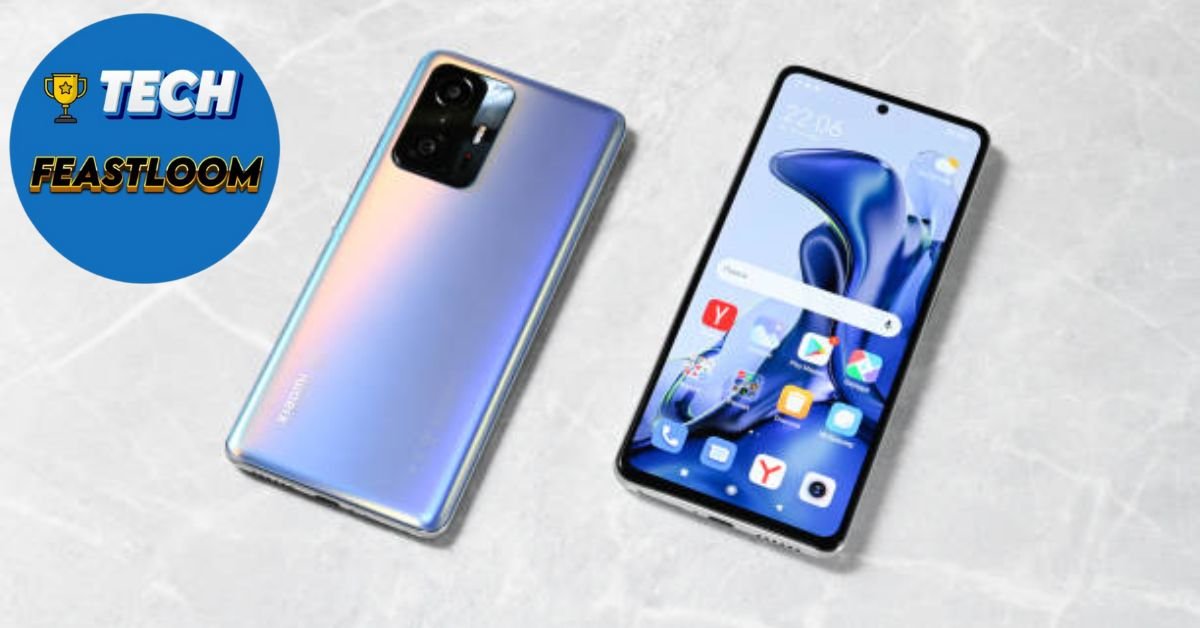
Can Android get Apple’s privacy features?
Quick Answer: Yes, Android 12+ includes similar privacy features like app tracking transparency, permission indicators, and privacy dashboard that match or exceed Apple’s offerings.
Android has made significant privacy improvements that rival or surpass iOS capabilities. The Privacy Dashboard in Android 12 and later shows a timeline of which apps accessed sensitive permissions like your camera, microphone, and location. App tracking transparency now requires apps to ask permission before tracking you across other apps and websites. Android 13 introduced photo picker that lets you share specific photos with apps without granting full gallery access. Google Play Protect scans apps for malware, and Private Compute Core keeps machine learning features on-device without sending data to servers.
- Permission indicators show when camera or microphone is active
- One-time permissions require apps to ask again next time
- Approximate location option shares general area instead of precise location
- Privacy-focused apps like DuckDuckGo browser available on Android
⚡ Quick tip: Access Privacy Dashboard by going to Settings > Privacy > Privacy Dashboard to audit which apps use your data most frequently.
What iPhone apps work on Android?
Quick Answer: Most popular iPhone apps have Android versions including Apple Music, Apple TV+, and Beats; however, apps like Safari, Apple Notes, and iWork suite remain iOS-exclusive.
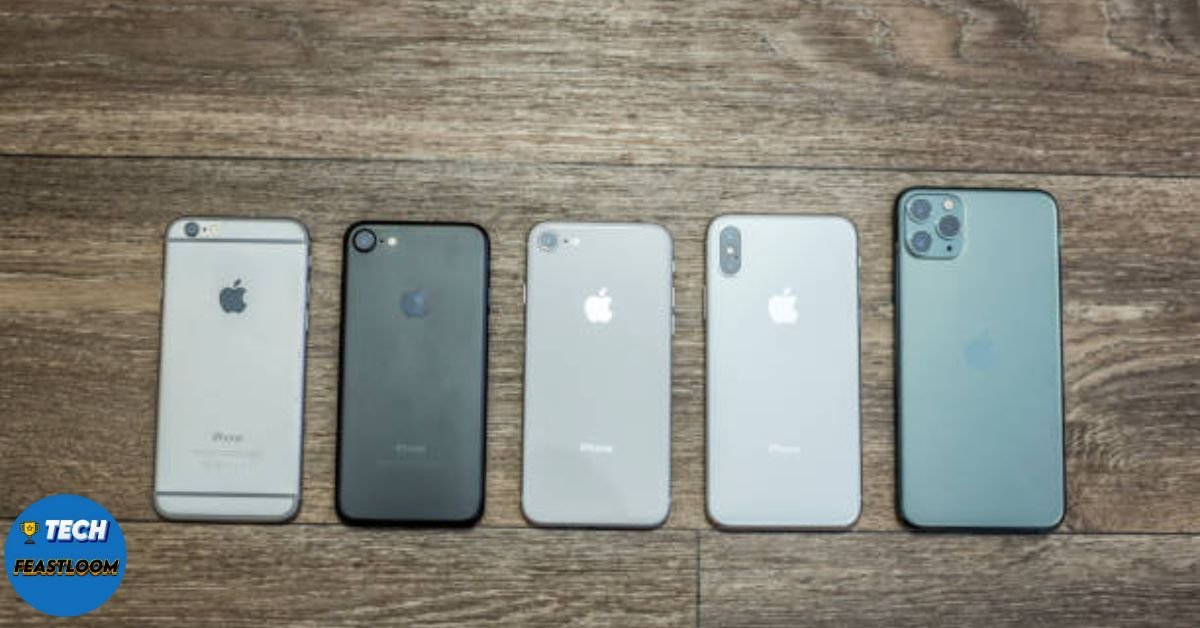
The good news is that nearly all major third-party apps available on iPhone also exist on Android: Instagram, TikTok, Netflix, Spotify, banking apps, and games are virtually identical across platforms. Apple has even released some of its own apps for Android, including Apple Music, Apple TV+, Beats, and Move to iOS. However, core Apple apps like Safari browser, Notes, Reminders, Calendar, Pages, Numbers, and Keynote remain exclusive to Apple devices. For these, Android offers excellent alternatives: Chrome browser, Google Keep, Google Calendar, and Google Docs provide similar or superior functionality.
- Available Apple apps on Android: Apple Music, Apple TV+, Beats app
- Best Android alternatives: Chrome (Safari), Keep (Notes), Google Calendar (Calendar), Docs (Pages)
- Gaming: 95% of mobile games available on both platforms simultaneously
🔗 Learn more: Check your must-have apps in Google Play Store before making any device decisions—compatibility is rarely an issue.
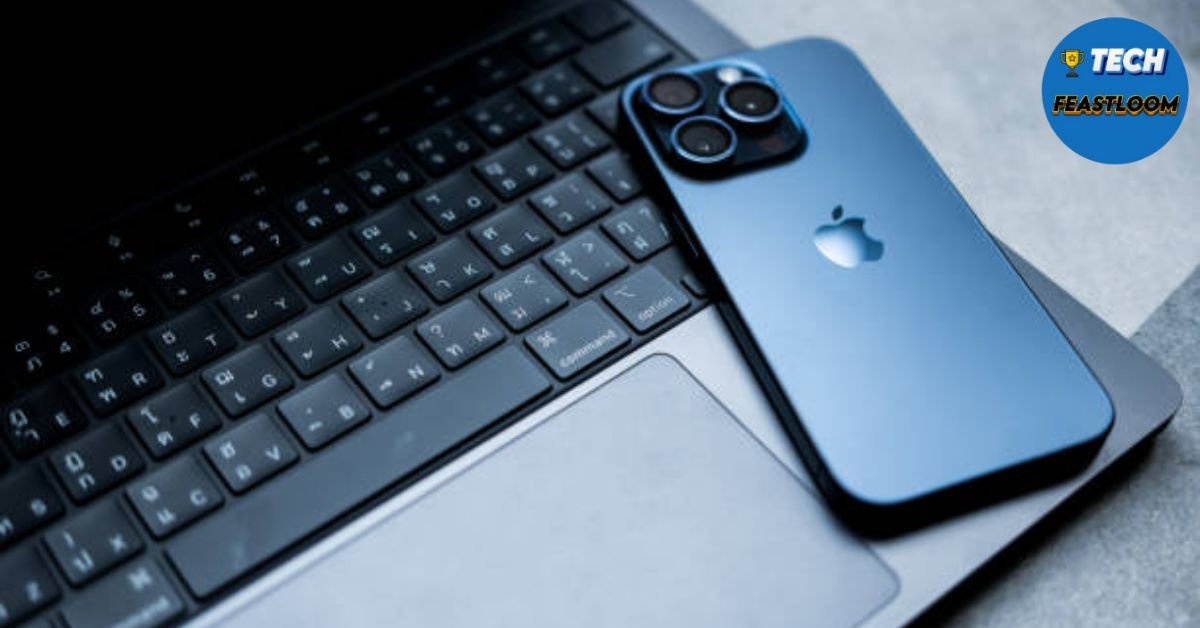
How do I get iPhone widgets on Android?
Quick Answer: Use KWGT (Kustom Widget) with iOS widget packs, or download dedicated apps like Color Widgets and iOS Widget that replicate iPhone’s widget designs and functionality.
Android actually pioneered home screen widgets years before Apple adopted them, so the ecosystem is mature and feature-rich. To get iPhone-style widgets, install KWGT (Kustom Widget Maker), a powerful free app that lets you create or download pre-made widgets. The Google Play Store offers dozens of iOS widget packs for KWGT that replicate iPhone’s aesthetic perfectly. Apps like Color Widgets and Widgy specifically focus on iOS-style customization. Android’s advantage is that widgets can be more interactive and customizable than iOS versions—you can create widgets that match your exact preferences.
- KWGT Pro: $4.99 one-time, unlimited custom widget creation
- iOS Widget packs: Free to $2.99, hundreds of pre-designed options
- Top widget apps: Color Widgets (free), Widgetable (free), iOS Style Widgets
💰 Price range: Free with KWGT and free widget packs; premium experience for under $8 total.
Android vs iPhone Features Comparison
| Feature | iPhone (iOS) | Android | Android Solution |
|---|---|---|---|
| iMessage | Native, seamless | Not available | Google Messages with RCS |
| FaceTime | Native | Web access only | Google Meet, WhatsApp |
| AirDrop | Native | Not available | Nearby Share / Quick Share |
| Privacy Dashboard | Yes | Yes (Android 12+) | Native feature |
| App Tracking Control | Yes | Yes (Android 12+) | Native feature |
| Widgets | Limited customization | Extensive options | Native + KWGT apps |
| Gesture Navigation | Yes | Yes (Android 10+) | Native feature |
| Customization | Limited | Extensive | Launchers, icon packs |
Expert Tips for Transforming Your Android
Start with the launcher, not individual apps. A quality iOS launcher like Nova Launcher or Launcher iOS 18 provides the foundation for your transformation. Configure the launcher first—including grid size, icon arrangement, and app drawer style—then add widgets and icon packs. This approach ensures consistency and prevents conflicts between customization apps.
Match gestures to iOS behavior for muscle memory. Android’s gesture navigation is similar to iPhone but has subtle differences. Use your launcher’s settings to customize swipe gestures: swipe up for app drawer, swipe down for notifications, and enable iPhone-style back gestures. Apps like Navigation Gestures let you fine-tune every swipe to match iOS exactly, making the transition feel natural if you’ve used iPhones before.
Use notification management to replicate Focus modes. Android’s Do Not Disturb and Focus Mode features actually surpass iOS capabilities. Set up custom profiles for work, sleep, and personal time that automatically silence specific apps and contacts. Android 13+ lets you schedule these modes and create exceptions—functionality that mirrors iPhone’s Focus modes while offering more granular control.
Create widget layouts during active hours. Widgets look different depending on content, so design your home screen when your calendar has events and your music widget shows a song. This prevents surprises when widgets populate with real data. Take screenshots of your ideal layouts and reference them while customizing.
Export your setup before major updates. Premium launchers like Nova offer backup features that save your entire configuration—home screen layout, icon packs, gestures, and settings. Export your setup monthly and before Android system updates. This five-minute habit prevents hours of reconfiguration if something breaks during an update.
 Common Mistakes to Avoid
 Common Mistakes to Avoid
- Installing too many customization apps at once: Start with one launcher and add features gradually. Installing multiple launchers, icon packs, and widget apps simultaneously causes conflicts, drains battery, and makes troubleshooting difficult. Build your setup incrementally over a few days.
- Expecting actual iOS ecosystem integration: Visual transformations make Android look like iPhone, but you won’t get seamless integration with MacBooks, iPads, or Apple Watch. iMessage will still show green bubbles to iPhone users, and AirDrop won’t work with Apple devices. Set realistic expectations about what customization can achieve.
- Ignoring battery optimization settings: Launchers and widget apps running constantly can drain battery if not optimized. After installing customization apps, check battery settings and ensure they’re not restricted. However, also monitor battery usage in the first week and adjust if drain becomes excessive.
- Using outdated tutorials and apps: Android customization evolves quickly. That 2019 YouTube tutorial might recommend apps that are now abandoned or have better alternatives. Check app update dates in Play Store—avoid anything not updated in the past six months. Look for recent guides from 2024-2025.
- Forgetting to secure your device: Some customization requires accessibility permissions or special access. Only grant these permissions to trusted apps from reputable developers with millions of downloads. Review permissions periodically in Settings > Apps to ensure no suspicious access.
Final Considerations
 Final Considerations
Android phones can successfully replicate many iPhone features, from visual design to privacy controls and communication capabilities. The key is understanding what’s genuinely possible versus what requires Apple’s proprietary ecosystem. Native Android features like Privacy Dashboard, gesture navigation, and Nearby Share already match iOS functionality without any additional apps. For aesthetics, quality launchers and widget apps transform your device for minimal or no cost.
The best approach combines Android’s native iPhone-inspired features with selective customization apps. You don’t need to transform everything—pick the iOS features you genuinely miss and implement those specifically. This targeted strategy maintains your device’s performance while achieving the iPhone experience you want.
Start your transformation today with a free launcher from Google Play Store. Test the interface for a week before committing to premium apps or extensive customization. Most users find that a simple launcher change plus Google’s native features provide 80% of the iPhone experience they’re seeking, without the premium price tag of switching to iOS.
Remember that prices and features change frequently as both Android and iOS evolve. Bookmark this guide and check back quarterly for updates on new features and recommended apps. The gap between platforms continues narrowing—your Android device might already have the iPhone features you’re looking for built right in.