The Best Sounding Home Speaker – The Amazon Echo Studio
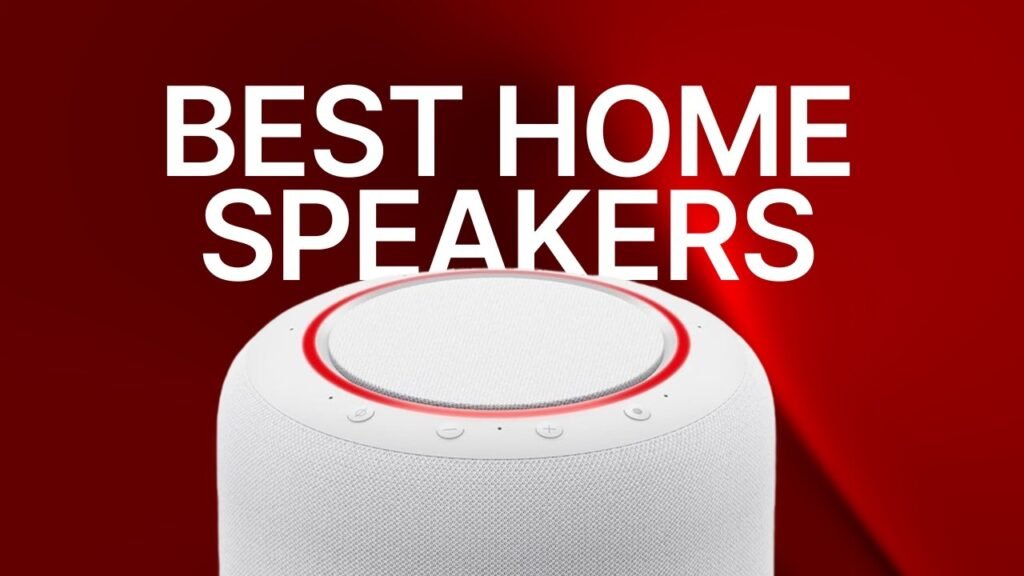
The Best Sounding Home Speaker – The Amazon Echo Studio
Visitar canal: David Alex
The Amazon Echo Studio has emerged as a leading contender in the realm of home speakers, combining high-quality sound with smart technology. This article will guide you through the features, setup, and optimization of the Echo Studio, ensuring you get the most out of your investment. Whether you’re a music enthusiast or someone looking to enhance your home entertainment system, understanding the Echo Studio’s capabilities will allow you to enjoy an immersive audio experience. We will also address common questions and provide tips to troubleshoot any issues you may encounter along the way.
Overview
Prerequisites and Materials
Before diving into the setup of your Amazon Echo Studio, ensure you have the following prerequisites and materials at hand:
- An Amazon Echo Studio speaker.
- A stable Wi-Fi connection (2.4 GHz or 5 GHz).
- The Amazon Alexa app installed on your smartphone or tablet.
- An Amazon account (if you don’t have one, you can create it during the setup process).
Having these items ready will streamline your setup process and allow you to enjoy your new speaker without unnecessary delays.
Estimated Time and Difficulty
The setup process for the Amazon Echo Studio is relatively straightforward and should take approximately 15 to 30 minutes, depending on your familiarity with technology. The difficulty level is low, making it accessible for users of all skill levels. Even if you are not tech-savvy, following the step-by-step instructions will help you successfully set up your device without any hassle.
Step by Step
Setup Steps with Tips
- Unbox Your Echo Studio: Carefully remove the Echo Studio from its packaging. Ensure you have all components, including the power adapter and quick start guide.
- Place Your Speaker: Choose an optimal location for your Echo Studio. Ideally, it should be placed in an open area away from walls and obstructions to enhance sound quality. Avoid corners, as they can distort audio.
- Connect to Power: Plug the power adapter into an outlet and connect it to your Echo Studio. Wait for the light ring to turn blue, indicating that the device is powered on.
- Download the Alexa App: If you haven’t already, download the Amazon Alexa app from the App Store or Google Play Store. This app is essential for setting up and managing your Echo Studio.
- Sign In or Create an Amazon Account: Open the Alexa app and sign in with your Amazon account credentials. If you don’t have an account, follow the prompts to create one.
- Add Your Echo Studio: In the Alexa app, tap on the “Devices” icon at the bottom, then select the “+” icon to add a new device. Choose “Amazon Echo” and then “Echo Studio” from the list.
- Connect to Wi-Fi: Follow the on-screen instructions to connect your Echo Studio to your Wi-Fi network. Make sure to enter the correct password to ensure a stable connection.
- Customize Settings: Once connected, you can customize settings such as your preferred music services, smart home devices, and more within the Alexa app.
- Test Your Speaker: To ensure everything is working correctly, ask Alexa to play a song or provide information. This will confirm that your Echo Studio is set up and functioning properly.
Common Mistakes and Fixes
While setting up your Echo Studio, users may encounter some common issues. Here are a few mistakes and their solutions:
- Wi-Fi Connection Issues: If your Echo Studio cannot connect to Wi-Fi, ensure that you are entering the correct password. Also, check if your Wi-Fi network is functioning properly by testing it with other devices.
- Alexa Not Responding: If Alexa doesn’t respond, check if the microphone is muted. The light ring will be red if the microphone is off. Simply press the microphone button to turn it back on.
- Audio Quality Problems: If you experience poor sound quality, ensure that your Echo Studio is placed in an optimal location, away from walls and obstructions. You can also adjust the equalizer settings in the Alexa app.
- Device Not Found: If the Alexa app cannot find your Echo Studio, restart both your Echo Studio and your smartphone or tablet. Then, attempt the setup process again.
“The Amazon Echo Studio is not just a speaker; it’s a gateway to a world of smart home integration and high-fidelity sound.”
FAQ
1. What makes the Echo Studio different from other Echo devices?
The Amazon Echo Studio stands out due to its superior audio quality and immersive sound experience. It features five speakers that provide 3D audio and spatial sound, making it ideal for music lovers. Unlike other Echo devices, the Studio is designed for high-fidelity sound, supporting Dolby Atmos and other advanced audio technologies. Additionally, it includes a built-in smart home hub, allowing seamless integration with various smart devices, enhancing its functionality beyond just a speaker.
2. Can I use the Echo Studio as a home theater system?
Yes, the Echo Studio can be integrated into a home theater system. You can pair it with other Echo devices to create a multi-room audio setup or use it as a standalone speaker for your TV. By connecting it via Bluetooth or using an optical audio cable, you can enjoy an enhanced audio experience while watching movies or playing games. The Echo Studio’s Dolby Atmos support further enriches the sound, providing a more immersive viewing experience.
3. How do I update the firmware on my Echo Studio?
Updating the firmware on your Echo Studio is typically done automatically when connected to Wi-Fi. However, if you want to check for updates manually, open the Alexa app, go to “Devices,” select your Echo Studio, and look for any available updates in the settings. Ensure your device is connected to the internet for updates to be applied. Keeping your Echo Studio updated ensures you have the latest features and improvements for optimal performance.
4. Can I use the Echo Studio for voice calls?
Yes, the Echo Studio supports voice calling and messaging through the Alexa app. You can make calls to other Echo devices or the Alexa app on smartphones. To initiate a call, simply say, “Alexa, call [contact name].” Ensure that you have set up your contacts in the Alexa app and granted the necessary permissions for calling. This feature allows for hands-free communication, making it convenient for users while multitasking.
5. Is the Echo Studio compatible with other smart home devices?
Absolutely! The Echo Studio acts as a smart home hub, allowing you to control various compatible smart devices, such as lights, thermostats, and security cameras, using voice commands. You can set routines and automate your home environment through the Alexa app. To add devices, simply navigate to the “Devices” section in the app and follow the prompts to discover and connect compatible devices. This integration enhances your home automation experience significantly.
6. What music services can I use with the Echo Studio?
The Echo Studio is compatible with a wide range of music streaming services, including Amazon Music, Spotify, Apple Music, Pandora, and more. You can set your preferred music service in the Alexa app to make it the default for voice commands. Simply say, “Alexa, play [song/artist] on [service]” to enjoy your favorite music. The Echo Studio’s high-quality sound enhances the listening experience, making it a great choice for music enthusiasts.
7. How do I reset my Echo Studio to factory settings?
If you need to reset your Echo Studio to factory settings, press and hold the microphone off and volume down buttons simultaneously for about 20 seconds. The light ring will turn orange, indicating that the device is in setup mode. You can also reset it through the Alexa app by selecting your device, going to settings, and choosing the reset option. Resetting your device can help resolve persistent issues or prepare it for a new user.
Conclusion
The Amazon Echo Studio is an exceptional addition to any home, offering high-quality sound and smart features that enhance your listening experience. By following the setup guide and troubleshooting tips provided, you can maximize the potential of your Echo Studio. Whether you’re enjoying music, controlling smart home devices, or making hands-free calls, this speaker is designed to meet your needs. Don’t hesitate to explore all its features and make the most of your investment. Start your journey with the Echo Studio today and transform your home audio experience!